You hit 'Send' on your quarterly report or monthly newsletter. Thousands of inboxes light up. But did you just accidentally hand over a digital fingerprint of your entire team? Inside that PDF sits hidden data-author names, edit histories, internal keywords-that anyone with the right tools can read. It’s not visible in the document, but it’s there, waiting to be extracted.
Cleaning this PDF metadata isn’t just a tech nerd’s hobby; it is a critical privacy step for any organization sharing documents at scale. If you are distributing reports to investors, newsletters to subscribers, or whitepapers to the public, you need to ensure no internal secrets leak through the file properties. Here is how to spot the risk, scrub the data, and keep your distribution secure without breaking your workflow.
The Hidden Data in Your PDFs
When you save a document as a PDF, the software doesn’t just flatten the text and images. It attaches a layer of descriptive information called metadata. Think of it as the file’s ID card. For an internal draft, this is useful. For a mass-distributed newsletter, it is a liability.
Most PDFs carry two distinct stores of this hidden data. First, there is the legacy Info dictionary, which includes fields like Author, Title, Subject, Keywords, Creator, Producer, CreationDate, and ModDate. Second, there is the modern XMP metadata stream, which often contains richer, structured data about the document's origin and edits.
If you only delete one, the other remains. A naive cleaner might wipe the Info dictionary but leave the XMP stream intact. This means your "cleaned" PDF still holds the author’s name and the last modification date. When you send a newsletter to competitors or sensitive clients, this incomplete cleaning exposes your internal timeline and personnel.
- Author Names: Reveals who created the document, potentially exposing staff members who should remain anonymous.
- Creation and Modification Dates: Shows when work was done, which can reveal project timelines or rushed edits.
- Keywords and Comments: Internal tags or sticky notes left by editors that were never meant for public eyes.
- Software Versions: Details about the specific version of Word, InDesign, or Acrobat used, which can hint at your company’s tech stack.
Why Mass Distribution Amplifies the Risk
Sending a PDF to one person carries low risk. Sending it to ten thousand multiplies the exposure exponentially. Once a file leaves your control, you cannot track where it goes. It gets forwarded, shared on social media, or archived on third-party sites. The metadata travels with it.
For newsletters and reports, the stakes are higher because these documents often contain strategic insights. If a competitor downloads your Q3 performance report, they shouldn’t just see the numbers. They shouldn’t also see that "John Doe" edited the financial section three times on a Friday night, suggesting a last-minute pivot in strategy. That context changes the value of the information.
Furthermore, automated bots scrape the web for PDFs to harvest email addresses and organizational structures. Metadata is a goldmine for these scrapers. By leaving metadata intact, you make it easier for bad actors to map your organization and target specific employees for phishing attacks.
Method 1: Using Adobe Acrobat Pro DC
If your organization already pays for Adobe Acrobat Pro DC, the industry standard for PDF editing, you have built-in tools to handle this. However, the process requires careful navigation to ensure complete removal.
- Open the PDF in Acrobat Pro.
- Navigate to Tools > Redact.
- Select Remove Hidden Information.
- Acrobat will scan the file for metadata, comments, and hidden layers. Click OK to proceed.
- Save the file as a new version.
This method is robust because it targets both the Info dictionary and the XMP stream simultaneously. However, it requires a paid subscription and desktop installation. For teams without Acrobat Pro licenses, or those looking to avoid installing heavy software, this creates a bottleneck. Additionally, Acrobat does not provide a simple log of what was removed, making audit trails difficult for compliance-heavy industries.
Method 2: Browser-Based Client-Side Cleaning
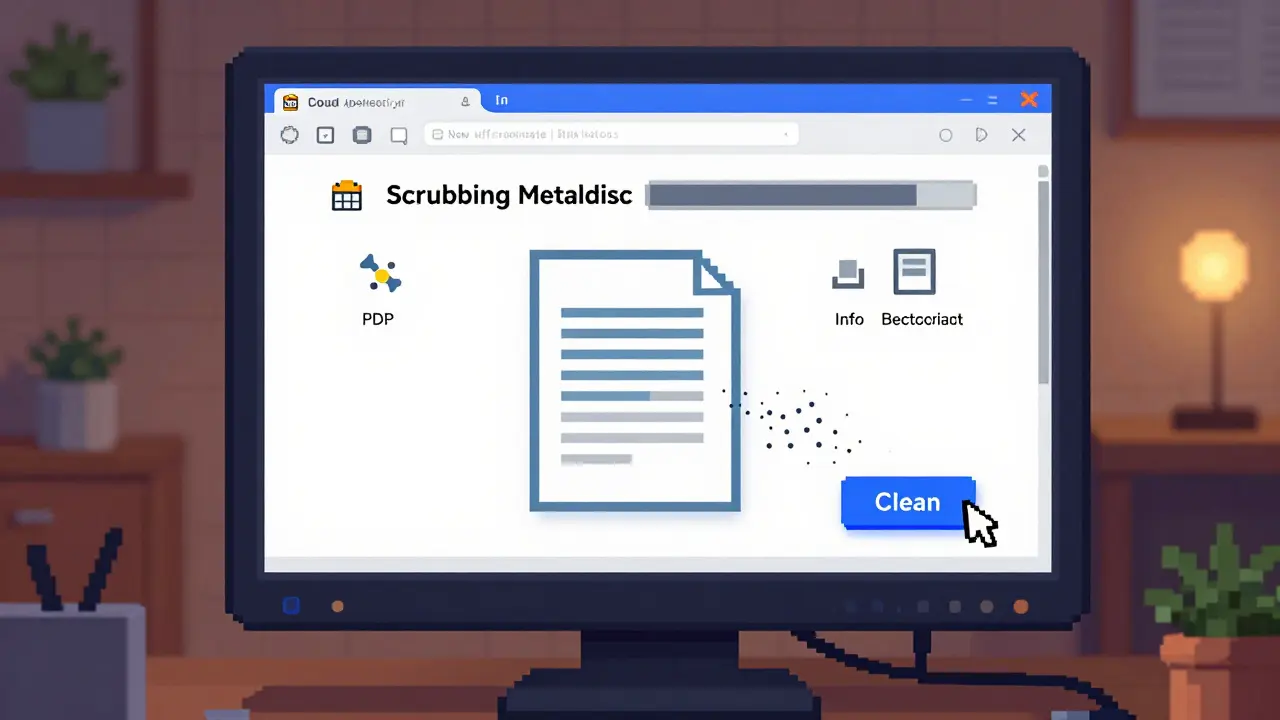
A more flexible approach is using browser-based tools that process files locally. This method eliminates the need for software installation and, crucially, keeps your documents off external servers. Look for tools that run entirely in your browser using WebAssembly and JavaScript.
One such option is Vaulternal's PDF metadata remover. Unlike many online converters that upload your file to a cloud server for processing, this tool works client-side. The file never leaves your device. You can verify this by opening your browser’s network tab while the tool runs-you’ll see no outbound requests carrying your document data.
This approach offers several advantages for mass distribution workflows:
- No Upload Risk: Since the file stays local, there is zero chance of server-side leakage or interception during transfer.
- Dual Mode: You can first inspect the metadata to see exactly what is hidden, then remove it. This transparency helps you understand what you’re protecting.
- Complete Stripping: It removes both the Info dictionary and the XMP stream, ensuring no residual data remains.
- Pixel-Identical Output: The visual content of the PDF is untouched. Only the metadata layer is rewritten, so your newsletter formatting remains perfect.
For organizations that distribute hundreds of PDFs monthly, this speed and simplicity reduce friction. There is no signup, no watermark, and no subscription tier. It simply cleans the file and lets you download the sanitized version immediately.
Integrating Metadata Cleaning into Your Workflow
Cleaning metadata should not be an afterthought. It must be a mandatory step in your distribution pipeline. If you rely on manual checks, human error will eventually lead to a leak. Automate or systematize the process.
Create a pre-send checklist for all marketing and communications teams:
- Step 1: Finalize content and design.
- Step 2: Export to PDF.
- Step 3: Run the PDF through a metadata inspector or remover.
- Step 4: Verify the cleaned file opens correctly and looks identical.
- Step 5: Distribute the sanitized file.
For high-volume operations, consider batch processing. Some desktop tools allow you to script metadata removal across folders of files. If you use browser-based tools, look for ones that support drag-and-drop multiple files. Consistency is key. One uncleaned PDF in a campaign can undo all your security efforts.
Complementary Security Measures
Metadata removal is powerful, but it is not a silver bullet. Combine it with other security practices for layered protection.
Password Protection: Adding a password to your PDF prevents unauthorized access to both the content and the metadata. Even if someone intercepts the file, they cannot open it without the key. Use strong, unique passwords for each distribution batch.
Permission Settings: Restrict printing, copying, or editing rights within the PDF. This limits what recipients can do with the document, reducing the risk of further dissemination or tampering.
Watermarking: For highly sensitive reports, add a visible watermark indicating the intended recipient or confidentiality level. This discourages casual sharing and helps trace leaks back to their source.
Common Pitfalls to Avoid
Even experienced users make mistakes when cleaning PDFs. Watch out for these common errors:
- Partial Cleaning: Assuming that deleting the "Author" field is enough. Remember, the XMP stream may still hold the same data under different tags.
- Re-saving Without Cleaning: If you edit a cleaned PDF and re-save it, the software may inject new metadata. Always clean the final version before distribution.
- Ignoring Embedded Fonts: While not metadata per se, embedded font data can sometimes reveal software versions. Most cleaners don’t touch fonts, but be aware that highly technical forensic analysis could pick up traces.
- Trusting Online Converters Blindly: Many free online PDF tools upload your file to their servers. If privacy is paramount, avoid these unless you can verify their no-upload policy.
Conclusion
Your newsletters and reports represent your brand’s voice and expertise. Don’t let hidden metadata undermine that trust. By understanding what data lives inside your PDFs and taking proactive steps to remove it, you protect your team, your strategies, and your reputation. Whether you use Adobe Acrobat Pro or a client-side browser tool, make metadata cleaning a non-negotiable part of your distribution routine. Your future self-and your competitors-will thank you.
What is PDF metadata and why is it dangerous?
PDF metadata is hidden information embedded in the file, such as author names, creation dates, and edit history. It is dangerous because it can expose internal organizational details, personnel, and timelines to anyone who receives the file, especially when distributed widely.
Can I remove metadata from a PDF for free?
Yes. Tools like Vaulternal's Metadata Remover offer free, browser-based cleaning without requiring a subscription or software installation. Adobe Acrobat Reader has limited capabilities, but Acrobat Pro requires a paid license.
Does removing metadata change how my PDF looks?
No. Proper metadata removal tools strip only the hidden data layers (Info dictionary and XMP stream) while keeping the visual content pixel-perfect. Your text, images, and layout remain unchanged.
Is it safe to use online PDF metadata removers?
Only if they are client-side. Many online tools upload your file to a server, risking privacy breaches. Look for tools that explicitly state they process files locally in your browser, such as Vaulternal's Metadata Remover, which never uploads your document.
How do I check if my PDF still has metadata?
You can use a metadata inspector tool. Vaulternal's Metadata Remover includes a view mode that displays all hidden fields before you choose to remove them. Alternatively, in Adobe Acrobat, go to File > Properties to see the current metadata.
What is the difference between the Info dictionary and XMP stream?
The Info dictionary is the older, basic metadata format in PDFs. The XMP stream is a newer, more detailed XML-based metadata container. Both can store sensitive data, so effective cleaning must remove both to ensure total privacy.
Should I password-protect my newsletters after cleaning metadata?
Password protection is optional but recommended for highly sensitive reports. It adds a layer of security by preventing unauthorized access. However, for general newsletters, metadata removal alone is usually sufficient to protect privacy.
Can metadata reveal who edited my document?
Yes. Metadata often includes the names of authors and editors, along with timestamps of when changes were made. This can expose internal workflows and personnel involved in creating the document.